How to migrate old blur effects to Liquid Glass on iOS without breaking your layout
Liquid Glass on iOS adopts itself on Apple's controls when you recompile. The custom blur views you built yourself are the ones that break the layout.
You recompiled against the latest SDK, the standard navigation bar and toolbar picked up Liquid Glass on iOS for free, and most of the app looked right. Then you opened the screens with your own translucent header or that frosted card behind a sheet, and they sat there flat against everything around them. The system chrome now floats and reacts to what's under it, and your old surfaces sit dead next to it. That gap between the parts that updated themselves and the parts that didn't is the whole migration.
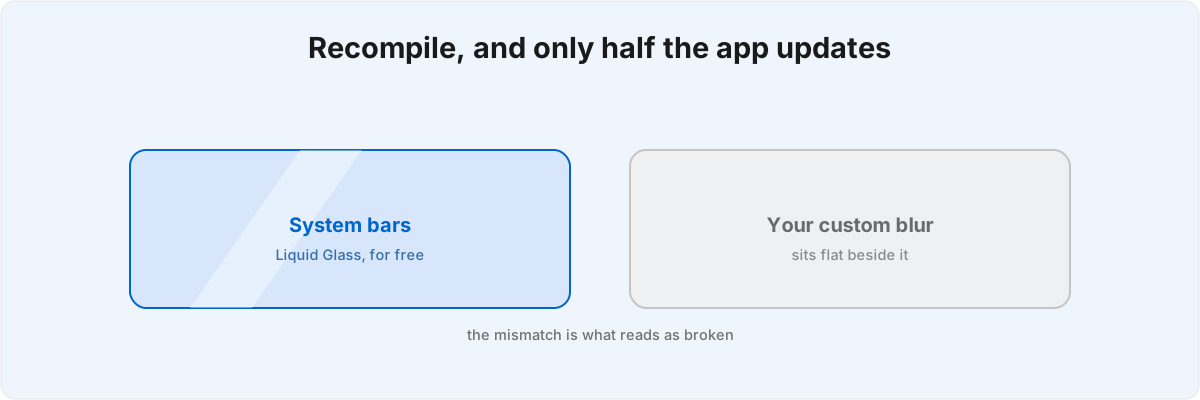
Does recompiling finish the Liquid Glass migration? 
No. The automatic adoption only reaches Apple's own controls. Anything you built with UIBlurEffect and UIVisualEffectView, or a hand-rolled material you tuned by eye years ago, is invisible to it. Those views keep their fixed blur and their hardcoded opacity while the system surfaces beside them now refract what's behind them and shift between light and dark depending on what scrolls underneath. The mismatch is what reads as broken, rather than any single view on its own.
The reason the automatic path stops at the system controls is that adoption is keyed to the control type. A UINavigationBar knows it is a navigation bar, so the SDK can substitute the new rendering for it. A UIVisualEffectView you positioned by hand is just a layer with a blur radius as far as the system is concerned, and it has no way to know the layer was meant to read as chrome. So it leaves it exactly as you specified it. Everything you let the framework own gets upgraded; everything you took ownership of stays frozen at the version you froze it at.
A lot of teams bought themselves time here by setting the iOS 26 opt-out so the build kept its old appearance. That escape hatch is gone: Xcode 27 removed it,[1]1. WWDC 2026 session 122 (SOTU recap) - the iOS 26 Liquid Glass appearance opt-out was removed in Xcode 27, so recompiling against the current SDK applies the new design unconditionally. so any app recompiled against the current SDK gets the new design whether it was audited or not. The iOS 26 redesign you were treating as optional now ships the moment you build, which is why deferred migration work tends to surface all at once. A year of accumulated drift opens in a single release, and the screens you never got round to auditing are the ones that show it.
Why does the layout break on iOS 26? 
Because the new design splits the app into two layers, and most custom blur views were built into the wrong one. The UI layer holds navigation and stays native. Below it sits a content layer that holds your brand canvas. When you place a translucent surface, the layer it belongs to decides whether the system can read it or fights it.
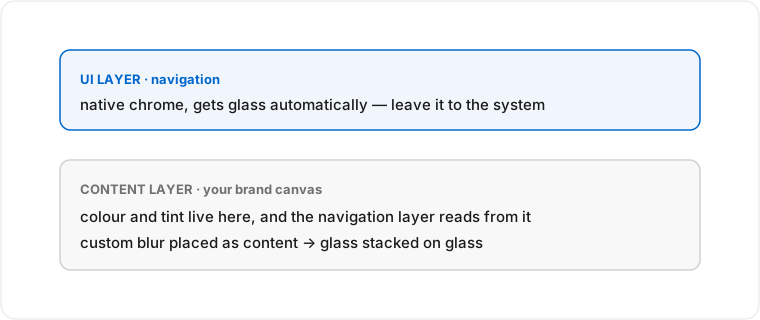
Apple's own framing of this is a brand model: tint and colour live in the content and scroll area, and the navigation layer picks them up dynamically rather than being painted directly.[2]2. WWDC 2026 session 251, "Communicate your brand identity on iOS" - the two-layer brand model: a native UI layer for navigation above a content layer holding the brand canvas, with tint and colour placed in the content/scroll area so the navigation layer picks them up dynamically. Most custom blur views were placed as if they were content, so swapping them for glass leaves you with glass stacked on glass, or a tint fighting the scroll region instead of being picked up by it. The symptom is a muddy double-frost where two translucent layers sample each other, and it only appears once real content scrolls behind both. On a static design mock it looks fine, which is why it survives review and reaches a device before anyone sees it.
This is the part that catches teams who think of the migration as cosmetic. It is a question about which layer every translucent surface belongs on, asked of a layout composed years ago for materials that no longer exist. The answer differs for a header, a card, a sheet background, and a sticky filter bar, and getting one wrong doesn't crash anything. It just looks subtly cheaper than the system chrome next to it.
Why do the small controls render differently depending on where I put them? 
Because placement decides whether a control adopts glass, with no style property involved at all. A Search Field rendered in a toolbar picks up Liquid Glass automatically; the same field placed down in the scroll region renders with standard styling instead.[3]3. WWDC 2026 session 292, "Design intuitive search experiences" - the Liquid Glass Search Field auto-adopts glass styling in a toolbar and renders with standard styling in the scroll region; the ContentUnavailableView(.search) empty state echoes the active query. You changed where the control lives, and the control inferred its appearance from that.
That single behaviour generalises to most of the small surfaces you'll touch, and it is the part that's easiest to get wrong precisely because nothing warns you. The empty state for a search screen wants ContentUnavailableView(.search) echoing the query rather than a generic placeholder. SF Symbols are expected over custom glyphs because the glass legibility behaviour is tuned against them and a custom glyph gives it nothing to adapt to.[4]4. SF Symbols and Dynamic Type are the assumed inputs for the Liquid Glass legibility behaviour; custom glyphs and fixed-size fonts give the system nothing to adapt, per Apple's Human Interface Guidelines for the iOS 26 design system. A custom font has to support Dynamic Type for the same reason. None of these is hard in isolation. They're hard to get right across a layout composed for the old materials, where a wrong call shows up not as a build error but as a contrast or hit-testing problem that only appears on device.
Two cases produce the worst surprises. With Reduced Transparency enabled the system substitutes opaque fills for the glass, so any contrast you only ever checked against the translucent version can fail there while looking perfect everywhere else. The other is a custom control whose tap target sits slightly off from its visual bounds: the old flat styling hid that, and the new floating styling exposes it, because the eye now expects the touchable region to match the thing that's visibly hovering. Both pass internal testing cleanly and surface in the first round of real-device feedback, because the conditions that trigger them aren't in anyone's default simulator.
How should I sequence the work so it doesn't all break at once? 
Start by separating the surfaces the system already owns from the ones you own, and leave the first group untouched. Every hour spent restyling a navigation bar to look "on brand" is an hour spent fighting the thing that already works. The migration is entirely in the second group: the custom translucent surfaces, and the decision about which layer each one belongs on.
The work isn't writing new glass. It's finding the custom surfaces that pretend to be content, deciding which layer each belongs on, and removing the ones that exist only to fake an effect the system now provides natively. A frosted card you built to sit behind a sheet may not need to be a card at all once the sheet itself floats. Before you restyle a surface, the better question is often whether it should still exist.
Two more things are worth auditing while you're in there, because they ride along with the redesign and break quietly. Custom fonts and any localised strings that change length under the new type treatment can both push a layout that was pixel-tuned for the old chrome, and the localisation regressions in particular tend to escape until a specific language ships. Those are worth catching in CI rather than in review. The motion system changed too: the redesign leans on zoom transitions and spring motion, so a screen that used a custom push animation can read as out of step next to system navigation that now moves differently.
Should I rebuild my custom blur views or delete them? 
Delete first, rebuild only what survives the question. Most custom blur views existed to approximate an effect the platform didn't offer, and the platform now offers it natively on the controls that matter. A translucent header you hand-built to float over a scroll view is, in a lot of apps, a navigation surface that should have been system chrome all along, and the migration is the moment to hand it back. Rebuilding it as bespoke glass keeps a maintenance burden you no longer need to carry.
The surfaces worth keeping are the ones doing something the system doesn't: a branded canvas behind content, a material with a tint that's part of your identity, an effect that's load-bearing for how a screen reads. Those move into the content layer, carry their colour there, and let the navigation layer above sample from them. Everything else is a candidate for deletion, and an honest audit usually finds the deletable pile is larger than the team expected. The apps that come out of this clean are the ones that deleted the surfaces they could and restyled only the few that earned it.
This is the work I take on as a Liquid Glass migration consultant. Across 12-plus shipped SwiftUI apps, including Metrics, the recurring pattern is the same handful of custom surfaces pretending to be content while the native chrome is best left as the system draws it. If a screen won't sit right next to the new bars, send it over with a note on where its blur came from and I'll point you at what's holding it on the wrong layer. If the migration also surfaced contrast or hit-testing problems on device, those usually want an accessibility and performance pass rather than another round of restyling.
WWDC 2026 session 122 (SOTU recap) - the iOS 26 Liquid Glass appearance opt-out was removed in Xcode 27, so recompiling against the current SDK applies the new design unconditionally. ↩︎
WWDC 2026 session 251, "Communicate your brand identity on iOS" - the two-layer brand model: a native UI layer for navigation above a content layer holding the brand canvas, with tint and colour placed in the content/scroll area so the navigation layer picks them up dynamically. ↩︎
WWDC 2026 session 292, "Design intuitive search experiences" - the Liquid Glass Search Field auto-adopts glass styling in a toolbar and renders with standard styling in the scroll region; the
ContentUnavailableView(.search)empty state echoes the active query. ↩︎SF Symbols and Dynamic Type are the assumed inputs for the Liquid Glass legibility behaviour; custom glyphs and fixed-size fonts give the system nothing to adapt, per Apple's Human Interface Guidelines for the iOS 26 design system. ↩︎