Why does my iOS accessibility audit pass the Accessibility Inspector but still fail VoiceOver?
An iOS accessibility audit that only runs the Inspector misses the navigation failures that strand VoiceOver users.
You ran the Accessibility Inspector, it came back green, and someone wrote "WCAG 2.1 AA: pass" in the compliance doc. Then a VoiceOver user opened the app, swiped into a screen, and got stuck. The iOS accessibility audit that an ADA complaint puts under a microscope measures something the Inspector never looks at, and most teams find that out the hard way.
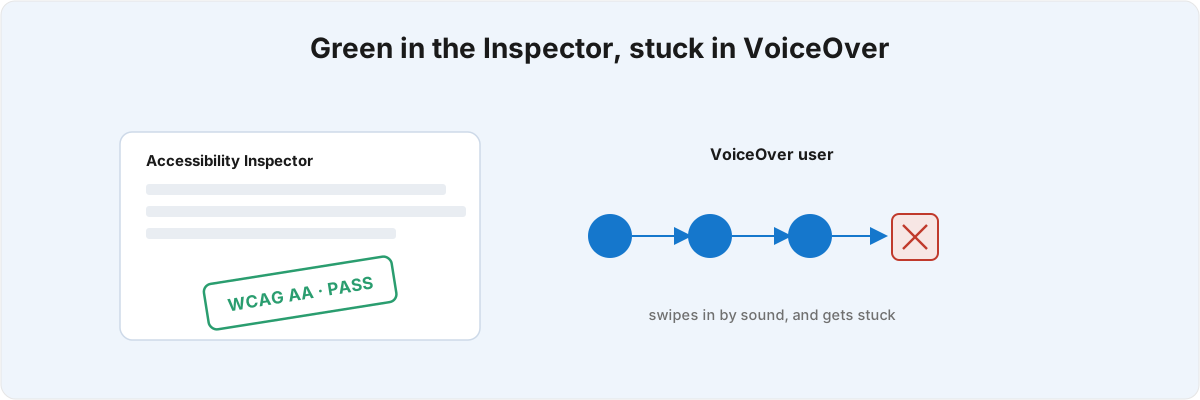
The Inspector is a good tool. It can only see what a machine can see, though, and the failures that generate complaints live in the part it can't. Below is where that gap opens, and why it survives a report that says you're compliant.
What does the Accessibility Inspector actually test? 
Element-level facts, and only those. Does this control have a label. Is the contrast ratio at least 4.5:1. Is the touch target 44x44pt. Those are real WCAG 2.1 AA success criteria[1]1. WCAG 2.1, Level AA - success criteria including 1.4.3 Contrast (Minimum) at 4.5:1 for normal text and 2.5.5 Target Size; W3C Web Content Accessibility Guidelines 2.1. and worth catching, but they are the ones a machine can measure on its own, without a model of what your screen is for.
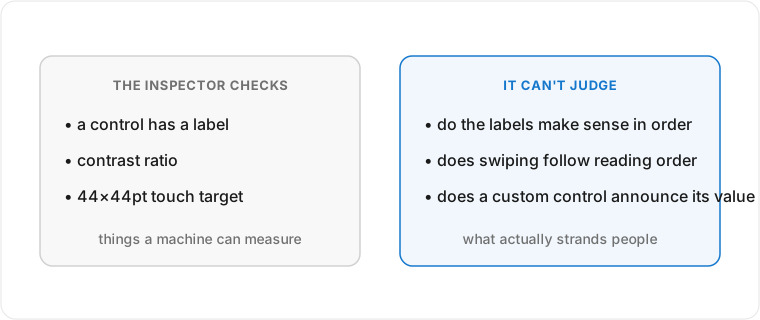
A machine has no way to judge whether the labels make sense in sequence, whether swiping right walks the screen in reading order, or whether a custom slider announces its value when someone adjusts it with the rotor. So the report confirms the metadata is present, which is true, and says nothing about whether the experience works. A screen can score 100% and still strand the first person who turns the display off and navigates by sound alone.
This is not a bug in the Inspector. It is the boundary of static analysis: a machine can check that a label is present, but whether the label is the right one in context is a judgement, and judgement is the part an audit you can defend has to supply. The teams that get blindsided read "green" as "done" when it only means the cheap half is clean.
Which accessibility failures does the Inspector miss? 
The ones that block people are structural, and they cluster in a few predictable places. They share a property: they only appear when you drive the screen with the assistive technology turned on, because what breaks is the relationship between elements rather than any single element a scanner can inspect on its own.
Custom controls are the worst offender. A view you drew yourself starts with none of the four things VoiceOver has to convey, which Apple frames as purpose, value, actions, and feedback.[2]2. WWDC 2026 session 220, "Refine accessibility for custom controls" - the purpose / value / actions / feedback principles, .accessibilityAdjustableAction, accessibilityActivationPoint, and .accessibilityDirectTouch with its custom-action fallback. Most teams get the label and the value. What slips past them is that a slider has to announce its new value when the rotor adjusts it, that the activation point has to land where the tap should land, and that a gesture-rich control adopting direct touch silences VoiceOver's own gestures unless you supply a custom-action fallback. You can label a control perfectly and watch it do nothing when someone tries to use it, because the label was never the part that was broken.
The direct-touch case is the one I see misunderstood most. The moment a control opts into direct touch so it can read raw finger movement - a drawing canvas, a custom pad, a tuner - VoiceOver stops interpreting swipes as navigation inside that region. That is intended. The failure is shipping it without a custom-action fallback, so a VoiceOver user reaches the control, loses the gesture vocabulary they were using everywhere else, and can't get out except by leaving the screen. The Inspector reads a labelled element and moves on, while the person using the app has walked into a dead end.
Why does reading order break on custom-rendered text? 
Because the free accessibility you get from a standard text view does not transfer to anything you draw yourself, and reading apps lean on exactly the relationships the Inspector never inspects. A standard UITextView adopts UITextInput for free, which is what lets VoiceOver navigate by line, character, and word, and what lets the rotor edit. Draw your own text and you inherit none of it.
iOS 27 widened this surface rather than narrowing it. Cross-element line navigation - moving the VoiceOver cursor by line across separate views - now runs through accessibilityNextTextNavigationElement and linked groups,[3]3. WWDC 2026 session 219, "Enhance the accessibility of your reading app" - accessibilityNextTextNavigationElement / accessibilityLinkedGroup for cross-element line navigation, causesPageTurn and accessibilityScroll for read-all, and full UITextInput conformance for custom-rendered text. and read-all behaviour depends on causesPageTurn firing a page turn at the right moment and accessibilityScroll carrying the cursor onward. None of that is something an automated checker exercises, because none of it is a property of a single element. The behaviour lives in how the elements hand the cursor to each other, and a static scan only ever sees one element at a time.
Custom-rendered text is the sharp edge. Implement UITextInput halfway and VoiceOver treats the whole block as one opaque object: no line navigation, no selection, no rotor editing, just a single announcement of everything at once. Doing it properly means selection rectangles and a tokenizer that agrees with how a sighted reader would chunk the text, and that is precisely the work teams defer because the screen "reads" in a quick manual pass. A screen reading correctly in a manual pass tells you nothing about whether someone can navigate it line by line with the rotor, which is the thing that person actually needs.
I spent five years on Epsy, an FDA-regulated epilepsy app rated 4.9/5, where a swallowed announcement becomes a clinical safety problem: a seizure-log confirmation VoiceOver never reads aloud is a data point that may never reach the medical record. That bar is higher than most apps need, but it teaches you to stop trusting "it reads in a manual pass" as evidence of anything.
Why does Dynamic Type pass review and still overlap on a real device? 
Because scaling the font is the easy half, and reflowing the layout the font lives in is the half nobody budgets for. Mark your labels with semantic text styles and adjustsFontForContentSizeCategory, and the text grows correctly. The Inspector confirms the text grows correctly. Then someone at the largest accessibility size opens the screen and two labels sit on top of each other, because the container around the text never changed shape.
The mechanism is straightforward once you've hit it. Text scales; fixed-height rows, side-by-side columns, and pinned constraints do not. At default sizes there's slack, so nothing overlaps and the screenshot looks fine. At the largest sizes the slack is gone and the layout collides. The real fix is reflow: letting a horizontal arrangement become vertical past a size threshold, which on SwiftUI means swapping layouts with AnyLayout driven off the dynamicTypeSize environment, and on UIKit means flipping a UIStackView axis in response to a trait change.[4]4. WWDC 2026 session 221, "Prepare your tvOS apps for Dynamic Type" (iOS-applicable) - semantic text styles, adjustsFontForContentSizeCategory, and reflow via AnyLayout (SwiftUI) or UIStackView.axis with registerForTraitChanges (UIKit). That reworks the structure of the screen rather than adding a font modifier, which is why it gets skipped and why it survives a review that only checked that the text got bigger.
iOS 26 raised the stakes on this one. Accessibility Nutrition Labels now advertise on the App Store product page whether your app supports Larger Text, alongside VoiceOver and the rest.[5]5. Apple's Accessibility Nutrition Labels (iOS 26) surface supported accessibility features - including Larger Text and VoiceOver - on the App Store product page; see Apple's App Store Connect Help, "Accessibility Nutrition Labels." The gap that used to be an internal bug, visible only to the user who hit it, is now a claim on your listing that a competitor or a complainant can check against the running app. A screen that overlaps at the largest size while your label says Larger Text is supported is a worse position than saying nothing.
So why can't this be a checklist? 
Because the right fix depends on how each screen was built and which assistive technology breaks on it, and those two facts are different for every screen. A checklist would tell you to "support the rotor" or "support Dynamic Type." It cannot tell you that this particular slider swallows its value announcement because it adopted direct touch, that this text block reads as one blob because its UITextInput conformance stops at the selection rects, or that this row overlaps only past a size threshold the screenshot never reached. The diagnosis is the work; the line of code is cheap once you know which line it is.
This is also why a tool-only audit reads clean and an audit you can stand behind in front of an ADA complaint does not. The Inspector and the automated scanners verify the half that's mechanical, which is worth verifying: take the free win on labels and contrast before anyone spends an hour. What they cannot do is drive your actual screens with VoiceOver, the rotor, and the largest text size and tell you where a real person gets stranded. That requires turning the display off and using the app the way the person filing the complaint did. Across twelve-plus shipped apps the pattern holds: the failures that strand real users are almost never the ones the Inspector flags, and a related class of dead-end - a screen a user can enter but can't get smoothly back out of - never shows up in a static scan at all.
If your report says pass and you want to know whether someone can actually get through a flow by sound, with VoiceOver doing the navigating, send me the build and the screens you are unsure about and I'll tell you where it breaks and why. The same eye that ships App Store submissions through review without an accessibility flag is the one that finds the trap before a complainant does.
WCAG 2.1, Level AA - success criteria including 1.4.3 Contrast (Minimum) at 4.5:1 for normal text and 2.5.5 Target Size; W3C Web Content Accessibility Guidelines 2.1. ↩︎
WWDC 2026 session 220, "Refine accessibility for custom controls" - the purpose / value / actions / feedback principles,
.accessibilityAdjustableAction,accessibilityActivationPoint, and.accessibilityDirectTouchwith its custom-action fallback. ↩︎WWDC 2026 session 219, "Enhance the accessibility of your reading app" -
accessibilityNextTextNavigationElement/accessibilityLinkedGroupfor cross-element line navigation,causesPageTurnandaccessibilityScrollfor read-all, and fullUITextInputconformance for custom-rendered text. ↩︎WWDC 2026 session 221, "Prepare your tvOS apps for Dynamic Type" (iOS-applicable) - semantic text styles,
adjustsFontForContentSizeCategory, and reflow viaAnyLayout(SwiftUI) orUIStackView.axiswithregisterForTraitChanges(UIKit). ↩︎Apple's Accessibility Nutrition Labels (iOS 26) surface supported accessibility features - including Larger Text and VoiceOver - on the App Store product page; see Apple's App Store Connect Help, "Accessibility Nutrition Labels." ↩︎